Texture Modding
How texture modding can be used:
Texture modding is useful if you want to change something in your client without huge combinations. Things in Interfaces and Modding sections are of course texture modifications too. It's not strange if you don't like modifications on my site - everybody got different taste - you can create own one.
What do you need to modify a texture:
Where can you find textures (examples):
- Interfaces: LCDir\Data\Interface\
- Armors: LCDir\Data\Item\Shield\
- Weapons: LCDir\Data\Item\Weapon\
- Skills: LCDir\Data\Effect\Texture\ & LCDir\Data\Effect\Particle\
How to modify a texture:
If you have TexTool turned on you need to choose .tex file from your Last Chaos directory (for safety, make a copy of it). It can be done by clicking File -> Open Image... or by dragging .tex file on TexTool window.
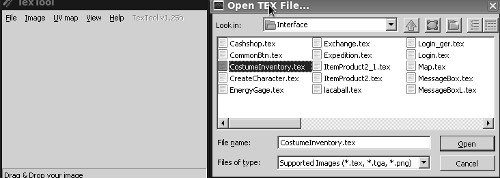
If you have opened a texture, now you can save it as .png image to edit it with any graphic editor. Click again on File -> Save as PNG and choose correct location to save it (the most comfortable way is to save it on desktop).
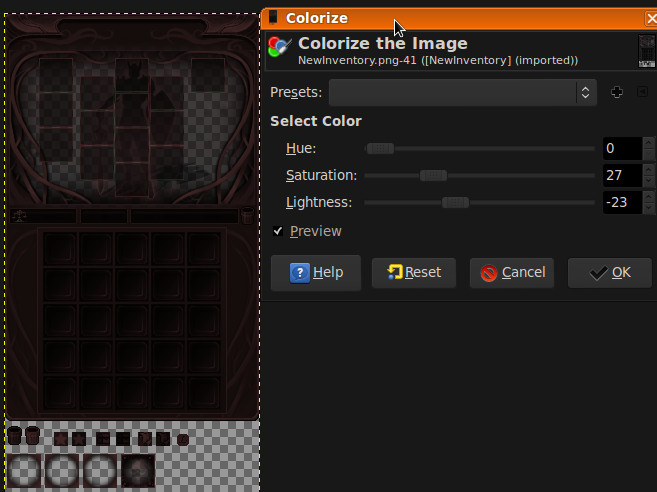
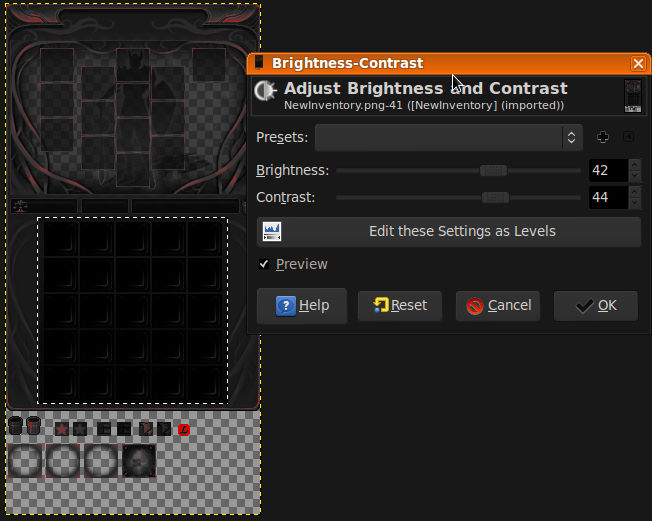
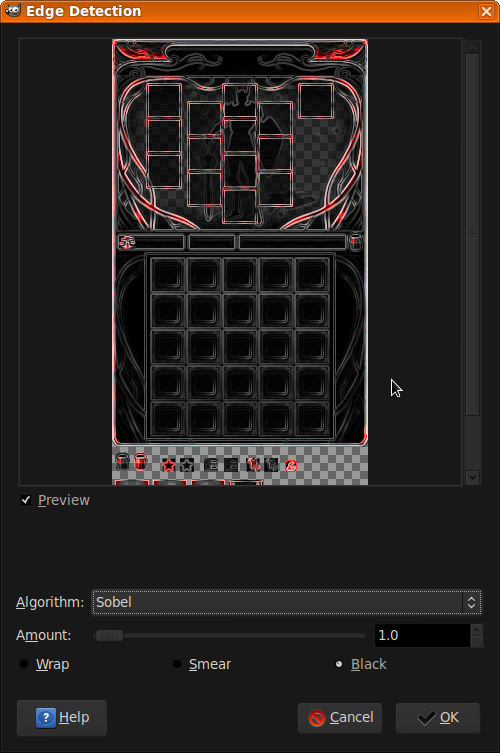
Once you've done that you can open it in graphic editor and edit. I can't teach you how to do it, because I don't know which graphic editor do you use. I'll just show you some screens from GIMP:
After editing .png file, you need to convert it back to .tex format. Drag .png file on TexTool window (or select it by File -> Open Image) and then File -> Save as TEX, choose correct name and click Save. You should select DXT 5 compression, but you can also use other ones. Be aware that first type doesn't support transparency! And now, make sure you've coppied a .tex file to correct directory in your Last Chaos folder!
Now, have fun with modding your Last Chaos client!